A good learning app for a 3 to 6 year old talks your child through everything, has no ads and no pressure to keep playing, treats mistakes as part of learning, and gets harder in small steps as your child improves. It also keeps your child’s data private and shows you what they’ve been doing. The checklist below works for any app, and most of it can be checked in about ten minutes of playing it yourself.
Why you need a checklist at all
Researchers who reviewed the science of learning in a 2015 paper on “educational” apps pointed out that these apps are largely unregulated and untested. They suggested a simple test: an app supports learning when it gets a child actively thinking (not just tapping), keeps them engaged with the task rather than distracted, is meaningful (connected to their life), and is socially interactive, all within a clear learning goal. They warned that noise, movement or side games unrelated to the goal pull children off task.
Keep those four ideas in mind as you go through the list.
The 10-point checklist
1. Instructions are spoken, not written
A pre-reader can’t use an app that relies on text, even a little. Every instruction should be spoken aloud, buttons should be pictures, and there should be a way to hear the instruction again.
- Red flag: menus, settings or “tap here to continue” screens your child has to read, so you get called over every two minutes.
- Quick test: hand it to your child with no help and watch the first five minutes.
2. No ads, including the sneaky kind
A 2019 study of 135 apps aimed at or played by children aged 5 and under found at least one type of advertising in 95% of them: in every free app and in 88% of paid ones. The ads included pop-up videos, teasers for the full app, prompts to buy, commercial characters, and ads you had to watch to unlock items.
- Red flag: “watch a video to get more”, a locked padlock in the middle of play, or a character who suggests buying something.
- Quick test: play for ten minutes and count every interruption that isn’t part of learning.
3. No manipulative rewards
A 2022 study of the apps used by 160 children (average age 4) found design meant to prolong play or prompt purchases was common. The researchers grouped it into four kinds: characters who pressure the child, made-up time pressure, screens that make it hard to leave, and attractive lures.
- Red flags: streaks that break if your child misses a day, countdown timers, surprise prize boxes, a character who cries when the child closes the app, and “just one more” pop-ups.
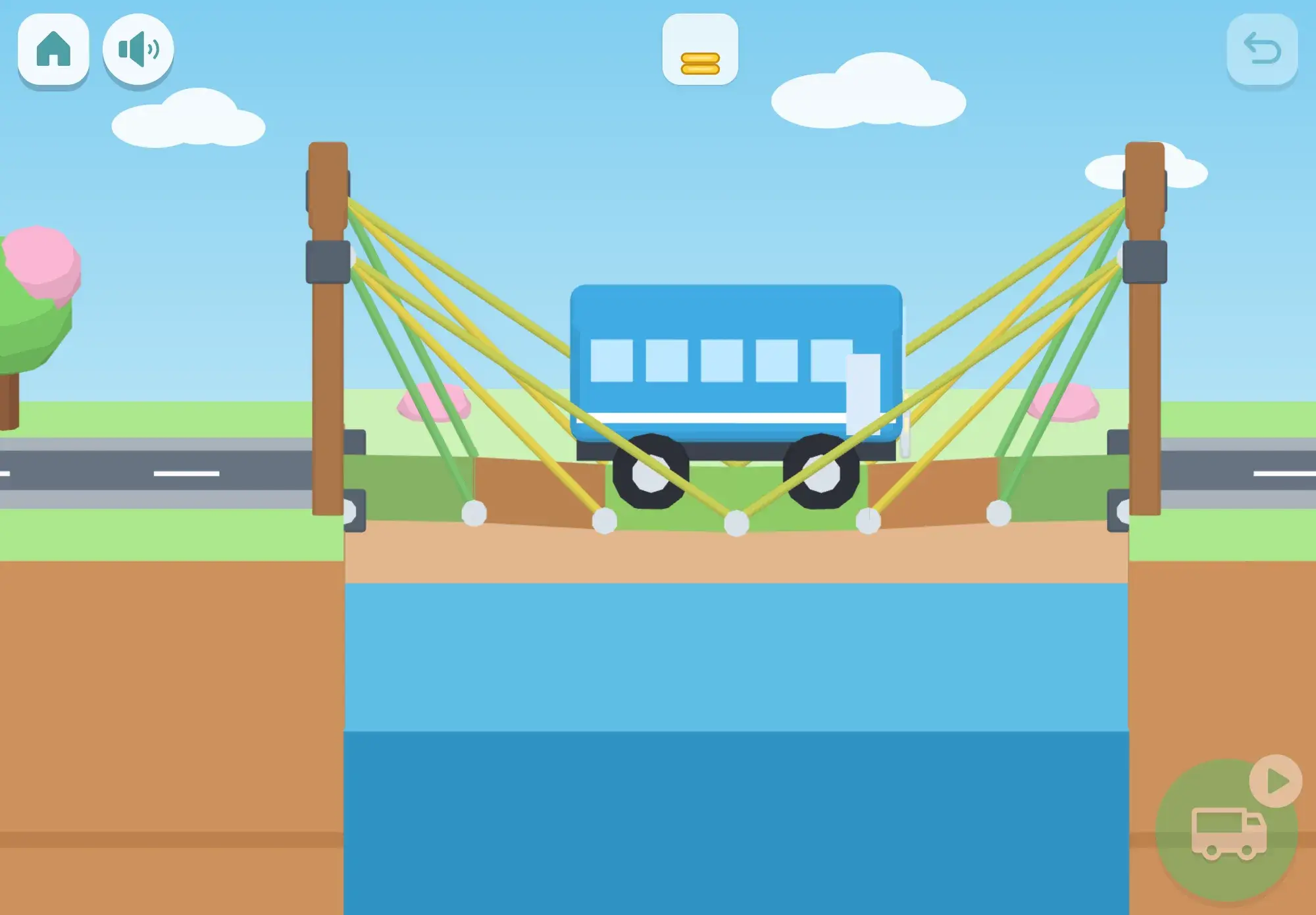
- Good sign: rewards that are part of the activity itself (the bridge holds, the truck drives across) and nothing lost by stopping.
4. Mistakes are explained, not punished
Young children learn by trying. An app that punishes wrong answers teaches them to guess carefully or quit.
- Look for: a wrong answer that says what it was and shows the right one, and rounds that get a bit easier after a run of slips.
- Red flags: lives, buzzers, red crosses, timers that run out, or losing progress.
- Quick test: get three answers wrong on purpose and see what happens.
5. A real learning progression
A pile of quizzes isn’t a curriculum. A good app teaches skills in a sensible order, moves on when your child is ready, and brings old skills back so they stick. For reading, that means letter sounds in an order that lets children build words early (our phonics order guide explains why).
- Red flag: the same level forever, or random questions with no sense of what comes next.
- Quick test: ask the app (or its parent area) what your child is working on now, and what comes after.
6. Privacy you can understand
Find out what the app collects and where it goes. In the US, the FTC’s COPPA rule requires services aimed at children under 13 to post a clear privacy policy, get verifiable parental consent before collecting personal information from children, and let parents review or delete it.
- Look for: no account for the child, no chat with strangers, no sharing to social media, and data kept on the device where possible.
- Red flag: a privacy policy you can’t find, or one that mentions advertising partners.
7. Works offline
An app that runs without the internet keeps working in the car, on a plane and at grandma’s. It also can’t load web ads or send your child to a browser.
- Quick test: switch on airplane mode and play.
8. You can see what’s happening
You should be able to see what your child practiced, what they find tricky, and how long they played, behind a gate a child can’t open.
- Look for: a parent area that needs something a pre-reader can’t do (like solving a written sum), plus a way to set session length.
- Red flag: a “parent area” that is really a shop.
9. Fits your child’s age
“Ages 3 to 8” covers a huge range. A 3-year-old needs big targets, very short rounds and simple taps; a 6-year-old wants more challenge and more control.
- Look for: content that adapts or unlocks by age, the option to hide parts that don’t fit, and separate profiles if siblings share a device.
- Red flag: tiny buttons, scary content, or a difficulty that never changes.
10. Easy to play together, and to carry off the screen
Joint play turns screen time into conversation. Good apps leave room for a grown-up to join in and give you ideas for later: count the plates, find a triangle, build a bridge from books.
- Quick test: play one round side by side. Is there something to talk about?
The checklist at a glance
| Point | Quick test |
|---|---|
| Spoken instructions | Can your child start without your help? |
| No ads | Any interruptions in ten minutes of play? |
| No manipulative rewards | Streaks, countdowns, sad characters, prize boxes? |
| Mistakes without punishment | What happens after three wrong answers? |
| Real progression | Can you tell what comes next? |
| Privacy | Account needed? Data shared? |
| Offline | Does it work in airplane mode? |
| Parent visibility | Can you see progress and set time limits? |
| Age fit | Big buttons, adjustable content, profiles? |
| Co-play | Is there something to talk about together? |
No app scores perfectly on everything, and no app can promise outcomes. What you can judge is what it asks your child to do, and what it asks of your child’s attention. If it’s mainly asking for attention, look elsewhere. For how much time to allow once you’ve chosen, see our screen time guide.
How Maestri World measures up
We built Maestri World with this list in mind, so here’s how it compares, point by point.
- Spoken: everything is spoken aloud, buttons are big pictures, and nothing needs reading. A speaker button says the explanation again.
- No ads, no manipulative rewards: there are no ads, no streaks that can break, no red counts, no random rewards and no timers that run out.
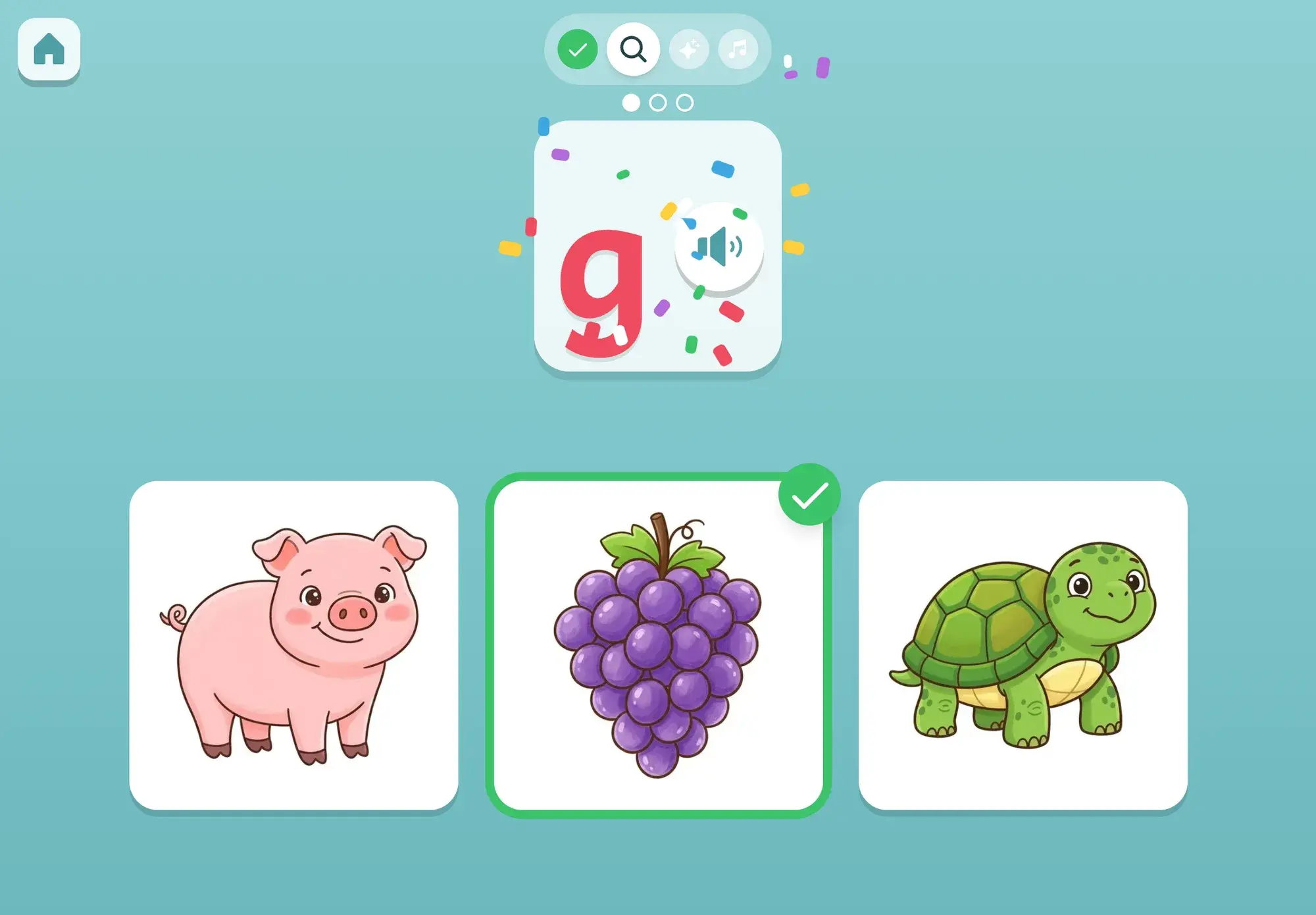
- Mistakes: in the bridge builder, a bridge that fails is funny, not sad: the truck floats on a ring, the moment replays in slow motion with the piece that gave way blinking, and the voice gives one hint. In letters and sounds, a wrong tap says what it was (“Moon! mmm”) and the right answer wiggles.
- Progression: each game has a ladder of skills that moves up after a couple of clean rounds; a run of slips makes the next round a step easier, and earlier skills come back now and then. Letters follow a phonics order. A short daily trip brings back things that are due for review.
- Privacy and offline: progress stays on the device, and the app works offline once installed.
- Parent visibility: a parent area behind a grown-up gate (hold the gear, then solve a written sum) shows time, progress and what’s tricky, and lets you set the session length.
- Age fit: games open by age from your child’s birth month, a parent can show or hide any game, and several children can have their own progress on one iPad.
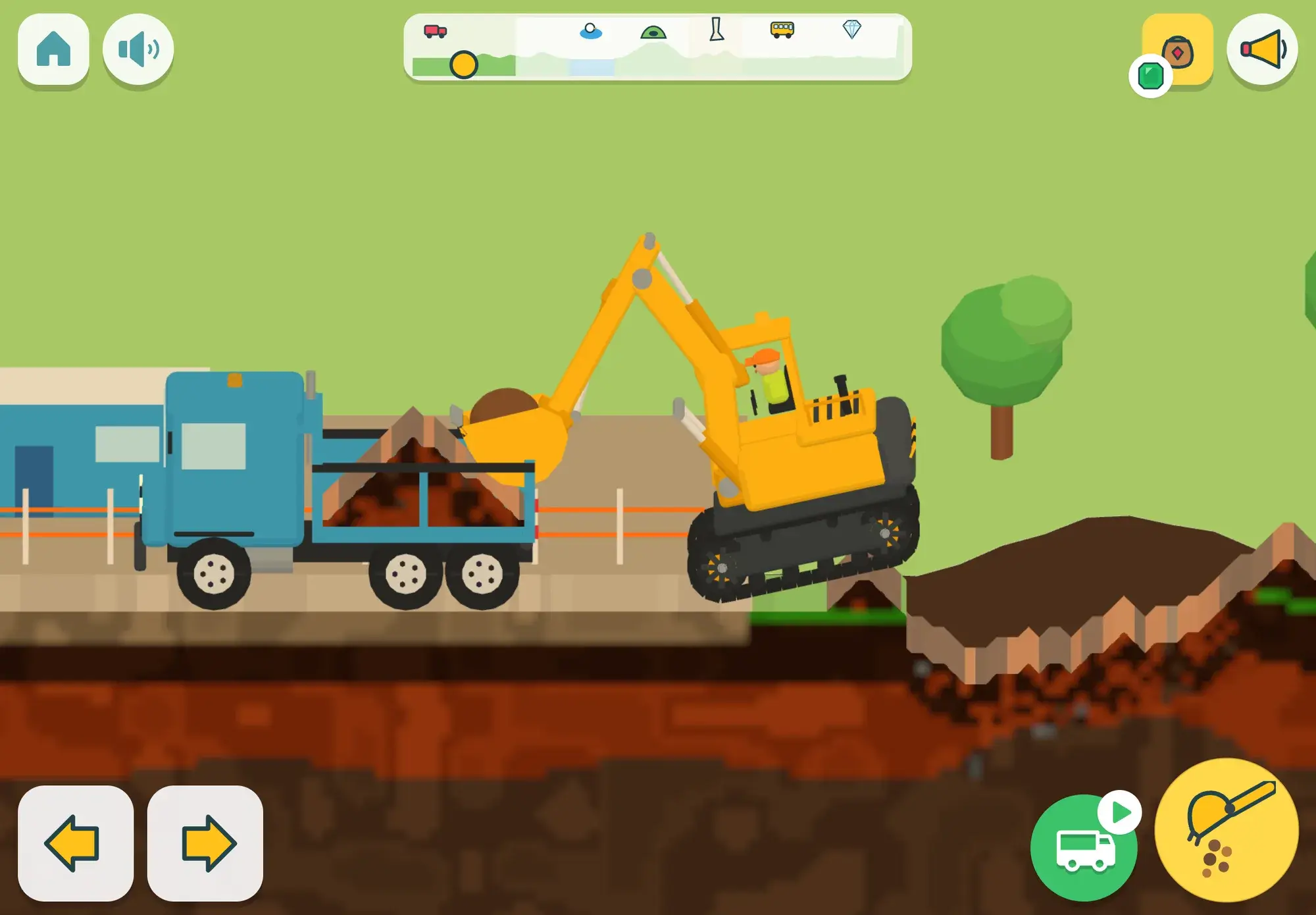
- Co-play: after a session, the break screen gives a small mission to do together. Our house uses your family’s own routines, so you can say “like in the house game” at the real sink. Some games, like the dig site, have no levels or scores at all, and nothing is paid out for digging: the digging is the fun.